Create your first labeling project in PixlHub, upload images, define a label schema, and submit your first annotated task in about five minutes.
This guide walks you through the complete PixlHub workflow: project, data, labels, annotation. By the end you will have a working image project with your first annotations submitted for review.
You need a PixlHub account and a workspace. Every account starts with a default workspace; you can create more from the workspace switcher in the top navigation bar.
1
Create a project
Go to Projects and click New Project. Give the project a name, an optional description, and pick a Tool Type. The tool type decides which annotation editor opens for your tasks, so choose the one that matches your data: Image, LiDAR / Point Cloud, Text, or RLHF.
The New Project dialog. This example creates an image project for street scene detection.
Click Create. PixlHub opens the project overview with a default workflow already in place: tasks move from Label to Review to Done.
2
Upload your data
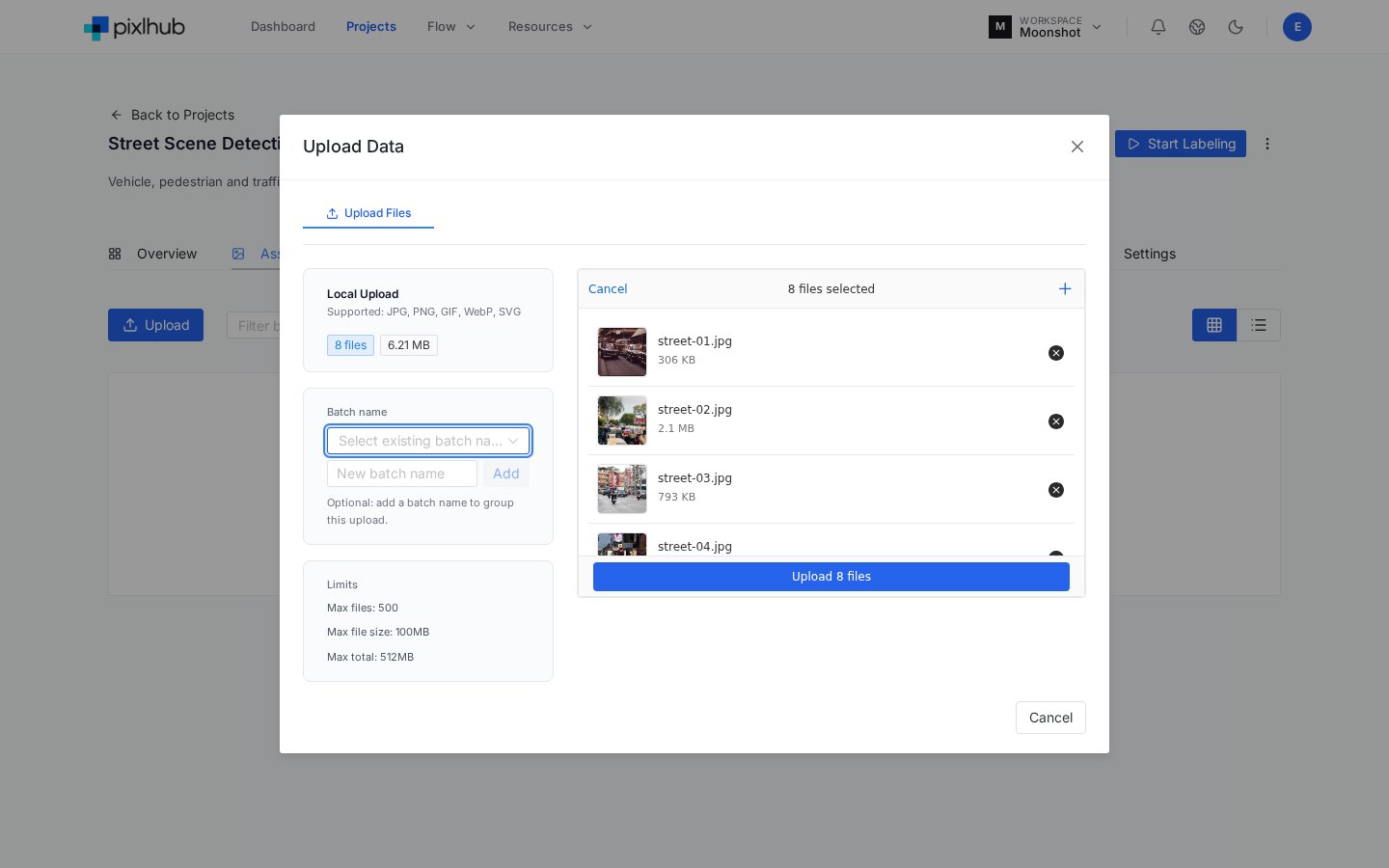
Open the Assets tab and click Upload. Drag files in or browse, then confirm with Upload files.
The upload dialog shows file sizes, running totals and limits before anything is sent.
Two details worth knowing at this stage:
Batch name is optional but useful: it groups an upload so you can filter and export by batch later.
Current limits per upload: 500 files, 100 MB per file, 512 MB total. Supported image formats include JPG, PNG, GIF, WebP and SVG.
PixlHub creates one task per uploaded asset automatically. Thumbnails appear in the Assets grid as processing completes.
3
Define the label schema
Open the Label Schema tab and click Add Label for each class you need. Every label gets a color and a hotkey number (shown as “Hot: 1”, “Hot: 2” and so on) that you will use constantly in the editor.
Three classes with automatically assigned hotkeys. Expand a label to add attributes.
Click Save and confirm. Labels can be edited later, but renaming or removing classes after annotation has started affects existing annotations, so settle the taxonomy early.
4
Annotate your first task
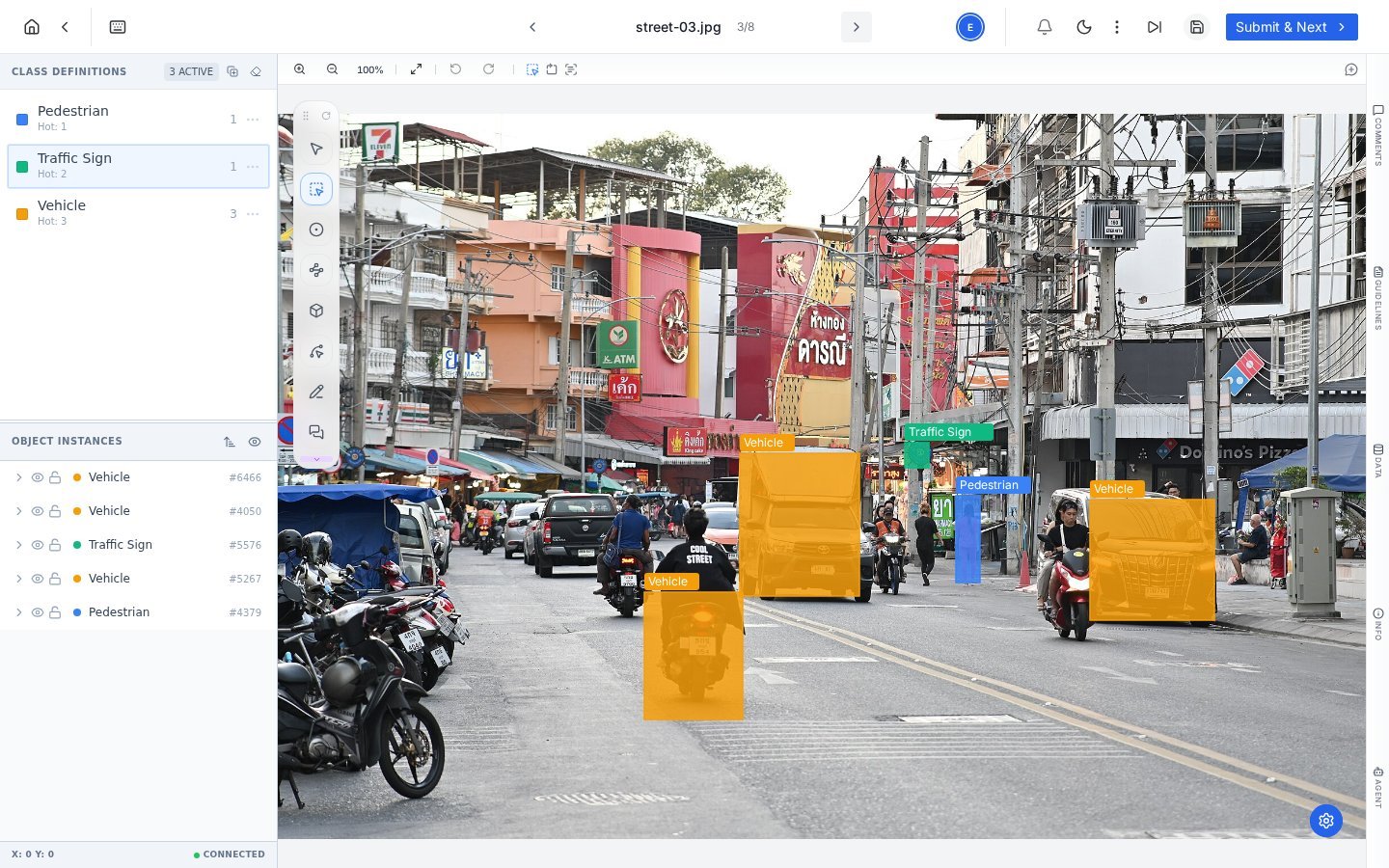
Click Start Labeling in the project header. The annotation editor opens with your first task queued.The fastest loop for bounding boxes:
Press the class hotkey (for example 3 for Vehicle).
Click and drag on the image to draw the box.
Repeat. Each annotation appears in Object Instances on the left with its class and ID.
A labeled street task: three vehicles, a pedestrian and a traffic sign, each drawn with its class hotkey and tracked in Object Instances.
5
Submit and keep going
You have two ways to finish:
Save stores your work without changing the task status. Use it when you are mid-task.
Submit & Next completes the task, sends it to the Review step of the workflow, and loads the next task in the queue.
Progress, throughput and per-class counts accumulate in the project Overview and Performance tabs as you work.