
Workspaces and organizations
The workspace switcher in the top navigation shows which workspace you are in; everything you see (projects, tasks, team) belongs to the active one. Management lives on the Organizations page, reachable via Manage on the Dashboard’s Team panel.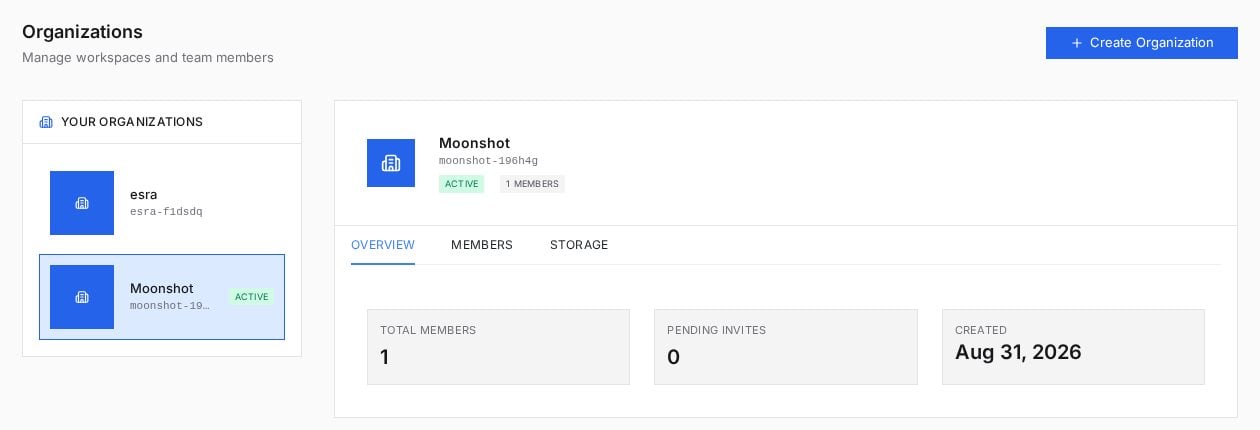
The Organizations page: every workspace you belong to, with member counts, pending invites and creation info.
Invite people
From the Members tab, Invite Member sends an email invitation with a role attached: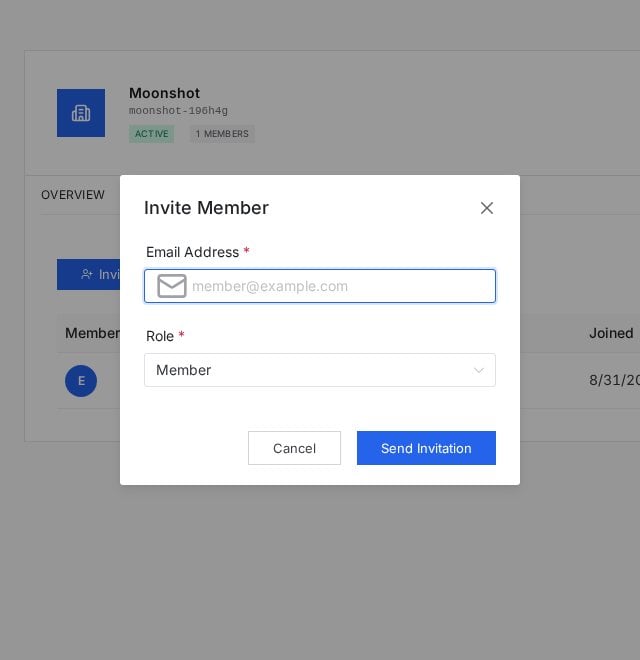
The invite dialog: email plus role. Invitations show as pending until accepted.
Project-level roles
Inside a project, capability is scoped further. Your role badge shows in the project header (a project Manager sees configuration tabs like Label Schema, Workflow and Settings), while day-to-day work splits along the pipeline:- Labelers pull tasks from the label queue, annotate and submit.
- Reviewers act on the review queue with accept and reject.
- Managers configure the project, watch performance, and can do both of the above.
Patterns that keep teams sane
- One workspace per trust boundary. Clients or datasets that must never mix belong in separate organizations, not separate projects.
- Least role by default. Invite as Member, elevate when responsibility arrives; demoting later is the awkward conversation.
- Reviewers are not optional at scale. A second pair of eyes per task is the cheapest quality system that exists; wire it into the workflow rather than trusting discipline.
Frequently asked questions
Can one person belong to several workspaces?
Can one person belong to several workspaces?
Yes; the switcher in the top bar lists every workspace your account belongs to, and your role can differ in each.
Do labelers see each other's work?
Do labelers see each other's work?
Task assignment controls this in practice: members work the queues their role and the workflow’s assignment rules give them, and the Tasks table shows ownership per task.
What happens to someone's tasks when they leave?
What happens to someone's tasks when they leave?
Their completed history stays on the tasks. In-progress assignments return to the queue for others to pull.
Next steps
Project workflow
Where assignment rules meet the queues.
Reviewing tasks
The reviewer role in action.