
Upload data
Click Upload in the Assets tab, then drag files in or browse. The dialog shows a running file count and total size before anything is sent, so surprises surface before the transfer, not after.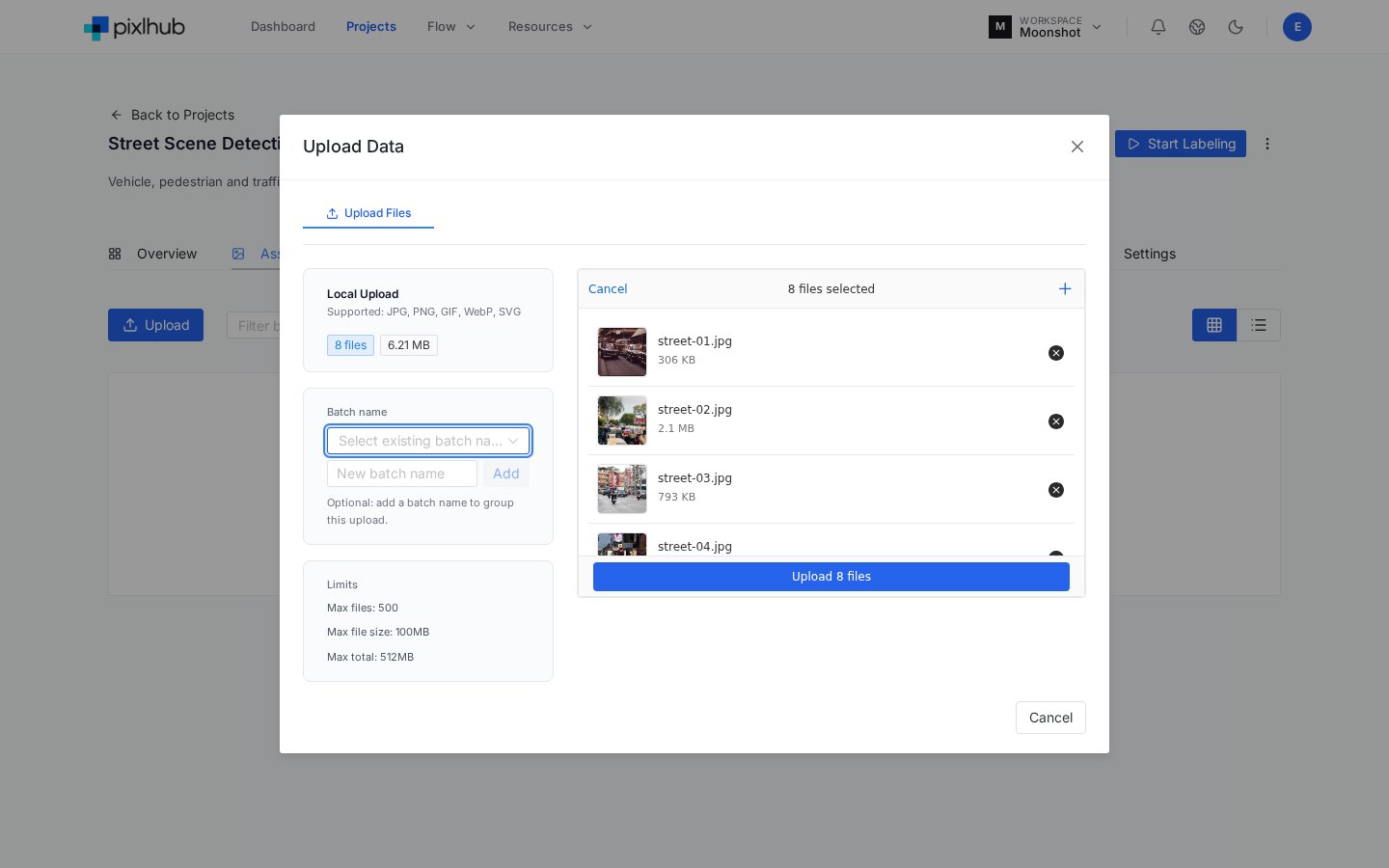
The upload dialog: live totals, optional batch name, and the current limits in plain sight.
Every uploaded asset automatically becomes a task in the project workflow’s entry step. There is no separate “create tasks” action; upload is the moment your queue fills.
Batches: organization that pays off later
The optional batch name in the upload dialog groups that upload under a label you choose (“2026-09 collection week 1”, “camera-B recordings”). The payoff comes downstream: the Assets tab filters by batch, the Tasks table shows each task’s batch, and batch boundaries make delivery tracking painless when data arrives in waves. Batches cost nothing to create and are miserable to reconstruct after the fact; when in doubt, name one.Browse: grid and list
Two views, toggled at the top right of the tab:- Grid shows thumbnails, the fastest way to eyeball what a dataset actually contains.
- List shows the operational columns: External ID, Created At, Batches, and the task count per asset.
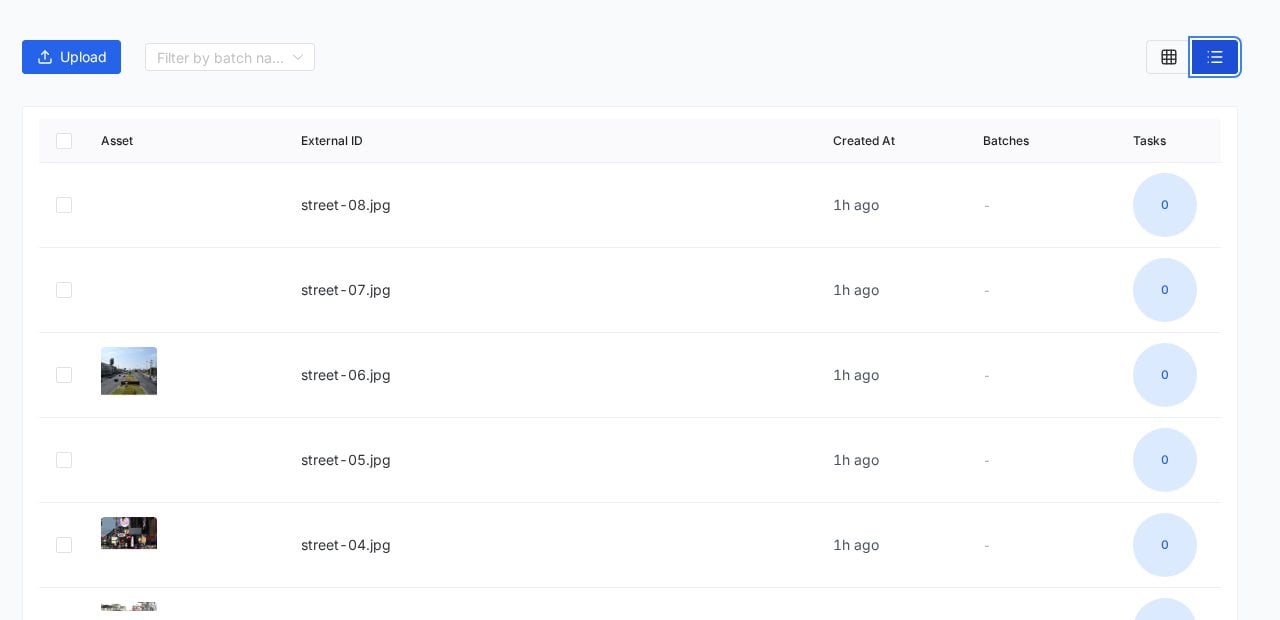
List view: the same assets with their IDs, upload times, batches and task links.
Frequently asked questions
Can I add more data to a project later?
Can I add more data to a project later?
Yes, upload as many times as you like. New assets join the workflow as new tasks alongside the existing ones; use batch names to keep the waves distinguishable.
What is the External ID?
What is the External ID?
The asset’s stable identifier, visible in list view. It ties exports and API references back to the exact file, independent of display names.
I need to upload more than 500 files or 512 MB.
I need to upload more than 500 files or 512 MB.
Split the upload into multiple rounds under the same batch name; the grouping keeps them logically together while each round stays inside the limits.
Next steps
Tasks
Where your uploaded assets queue up for labeling.
Imports
Bringing existing annotations in alongside your data.