
Assigning Guidelines to a Project
To add or update instructions for a specific project:- Select the Project: Navigate to the Projects page and click on the relevant project.
-
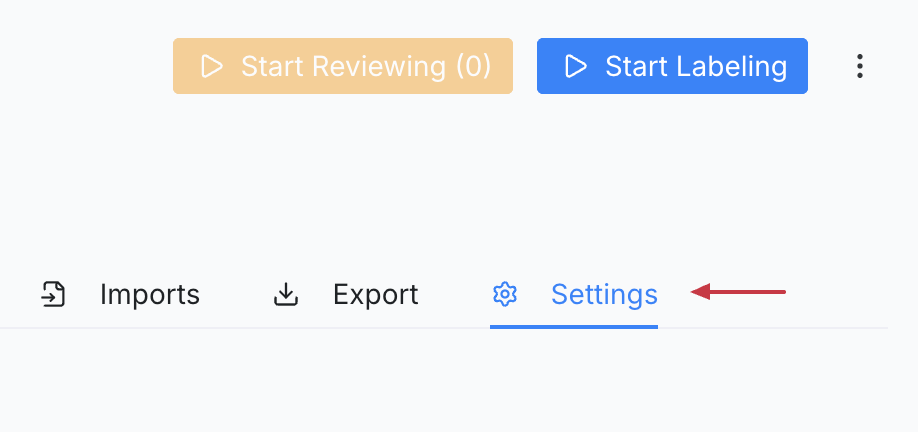
Open Settings: Inside the project dashboard, go to the Settings tab.
-
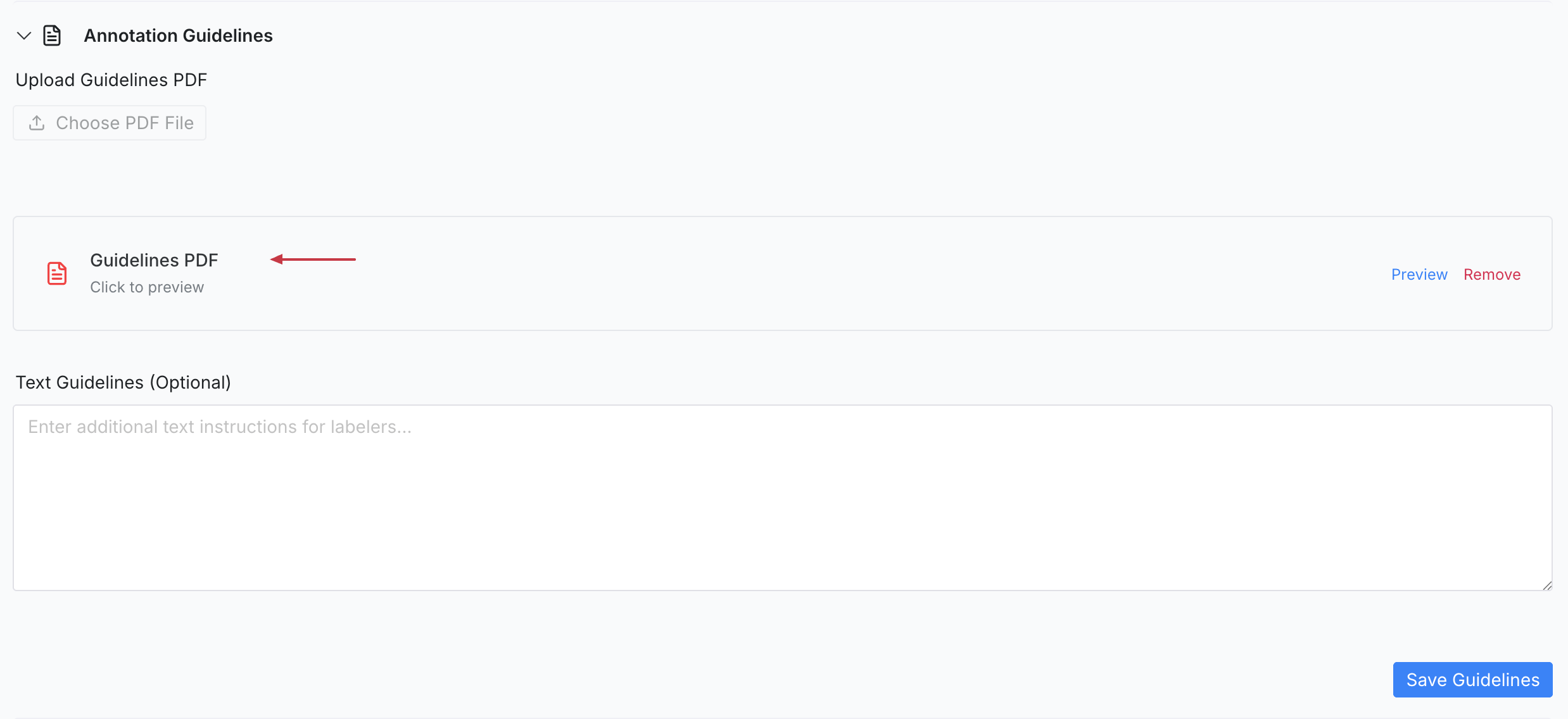
Locate Annotation Guidelines: Find the “Annotation Guidelines” row. Clicking this row will expand the section to reveal configuration options.
-
Choose a Format:
- PDF Guidelines: A PDF file can be uploaded directly to provide detailed visual instructions and edge-case examples.
- Text Guidelines: Alternatively, instructions can be entered manually in the text field for quick, searchable reference.
Viewing Guidelines During Labeling
Once assigned, guidelines are immediately available to annotators without them having to leave the labeling environment:
- Accessing the Guide: While inside the Annotation Tool, users can click the Guidelines tab located in the Right Drawer.
- On-the-fly Reference: This allows annotators to double-check labeling rules, class definitions, or specific object boundaries while they are actively working on a task.