

The canvas toolbar: zoom controls and current level, fit to screen, undo and redo, and the contextual tool-variant segment.
View controls
- Zoom In / Zoom Out step the magnification; the current level shows between them. The scroll wheel zooms too, centered on your cursor, which is usually what you want mid-annotation.
- Fit to Screen resets the view to show the whole image, the fastest recovery from deep zoom.
- Rotate Left / Right are visible but marked coming soon.
History
Undo and Redo cover annotation operations at fine grain: a vertex drag, a box resize, a deletion. Ctrl+Z and Ctrl+Y do the same from the keyboard, and since every edit is undoable, experimentation is free.Tool variants
The segment after the history buttons is contextual: it shows the variants of the active tool. With the Bounding Box tool selected, this is where Standard, Rotating and PDF/OCR live, as covered in Bounding Box.Keyboard shortcuts
The keyboard icon in the top-left header opens the reference popover: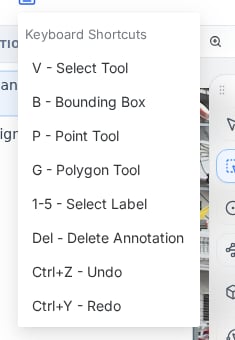
The shortcut reference: tools on letters, classes on numbers.
The working rhythm that falls out of these: number to arm the class, letter to pick the tool, draw, repeat. Hands leave the keyboard only to draw.
Shortcuts need canvas focus; if keys stop responding, click once on the canvas and continue.
Next steps
Canvas settings
Display and rendering preferences, saved per project.
Image annotation editor
The full editor tour.