
Comments are available to every project role, on every task. Reviewers use the same mechanism to explain rejections, so labelers see feedback in place rather than in a status field.
Pin a comment to a location
1
Pick the Comment tool
Click the comment icon at the bottom of the floating palette (or press C).
2
Click the spot
Click where the question lives: the ambiguous object, the blurry region, the price tag in dispute. A pin appears and the composer opens.
3
Write and send
Type your note. Mention a teammate with @ to notify them. Send with the shortcut shown in the composer (Ctrl or Cmd + Enter) or the send button.
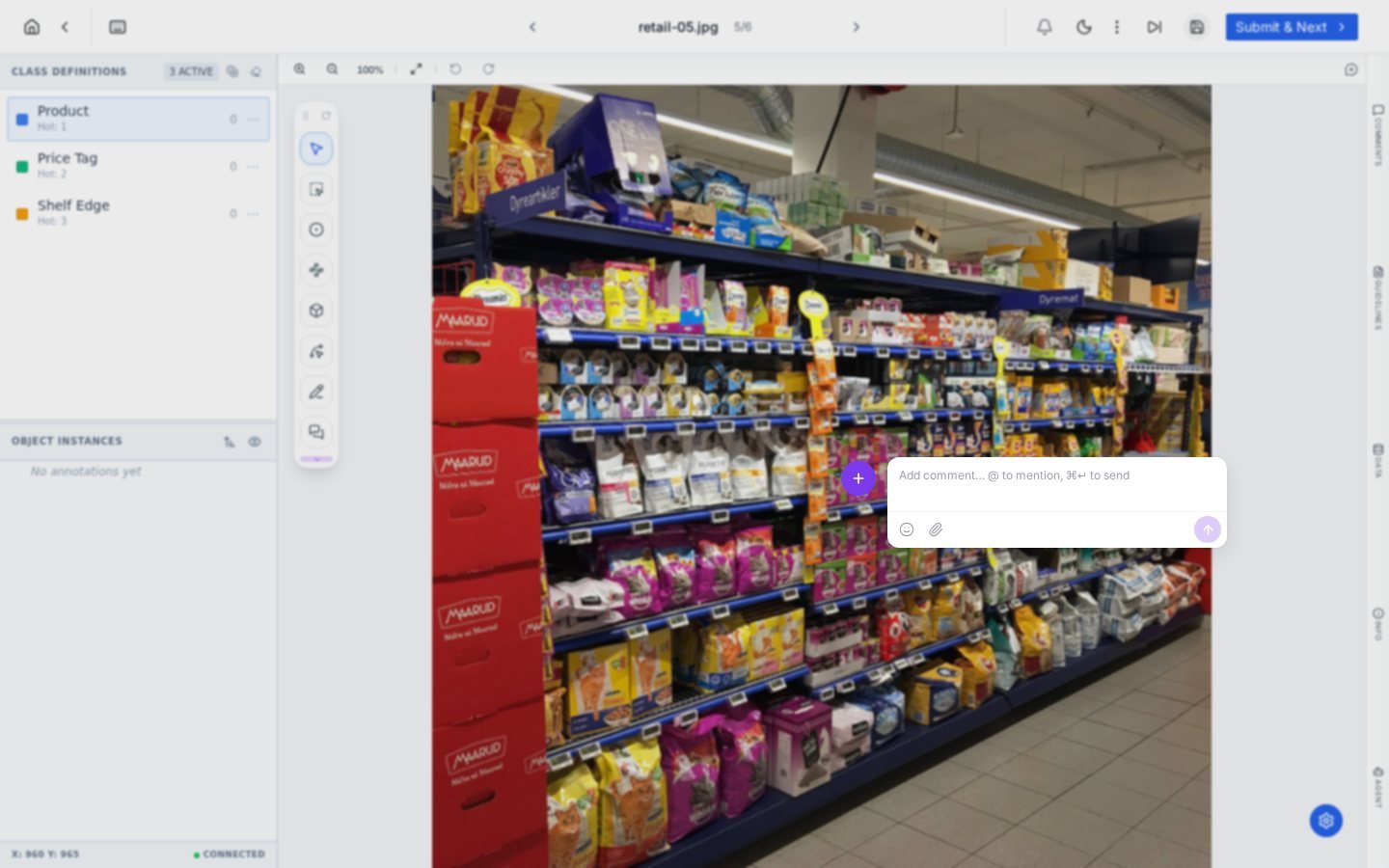
The composer opens right at the pin; the canvas dims so the discussion point stays in focus.
Follow the thread
Every pinned comment also lives in the Comments panel on the right rail, with filters for All, Open and Resolved. Replies keep the discussion threaded under the original pin, and the avatar marker stays on the canvas so anyone opening the task sees where the conversation points.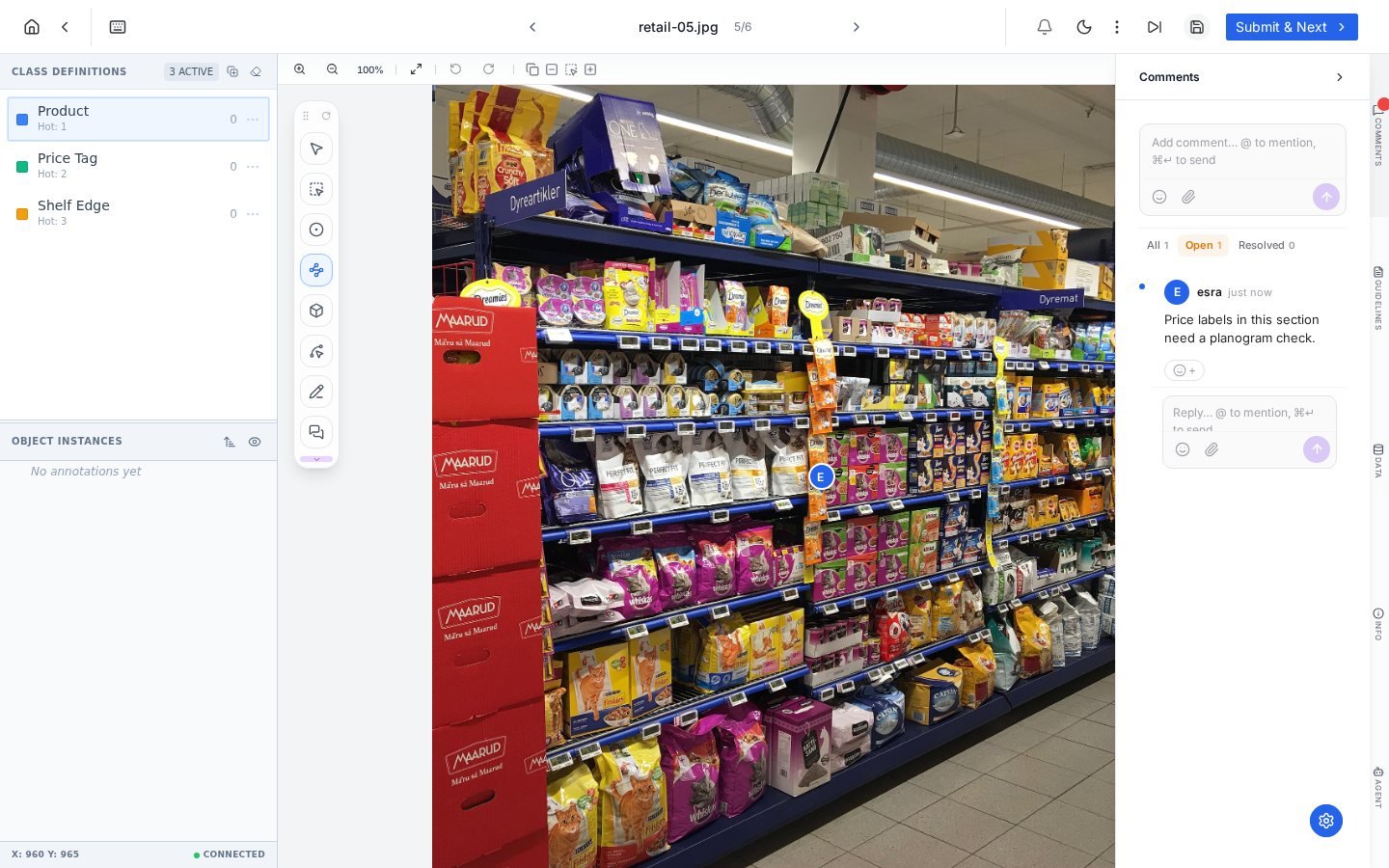
The Comments panel: open and resolved filters, threaded replies, and the same pin mirrored on the canvas.
Comments that actually help
- Point at the pixels. “The third shelf label from the left” is a sentence; a pin is an answer. Place the pin on the object, not near it.
- Mention the person who can decide. An @ to the project manager turns a stalled question into a notification in their queue.
- Resolve when settled. Open threads are a to-do list; resolving keeps the Open filter meaningful for reviewers sweeping a project.
- Guideline gaps become comments, comments become guidelines. When the same question appears on the third task, the answer belongs in the project Guidelines, one click away in the right rail.
Frequently asked questions
Who sees my comments?
Who sees my comments?
Everyone with access to the task: labelers assigned to it, reviewers and project managers. Comments are collaboration, not private notes.
Do comments affect the exported data?
Do comments affect the exported data?
No. Comments are workflow metadata, not annotations, so exports stay clean. They remain attached to the task for audit and context.
Can I comment without a location?
Can I comment without a location?
Task-level discussion lives in the same Comments panel; the pin is optional context. Use pinned comments whenever the question is about a specific region, which in practice is most of the time.
Next steps
Guidelines
Where settled answers should end up.
Teams and roles
Who can label, review and decide in a project.