
Available in image projects. Polygons live in the same schema as your other annotations, so a class can mix boxes and polygons freely; the class color and hotkey work identically for both.
Box or polygon?
Draw a polygon
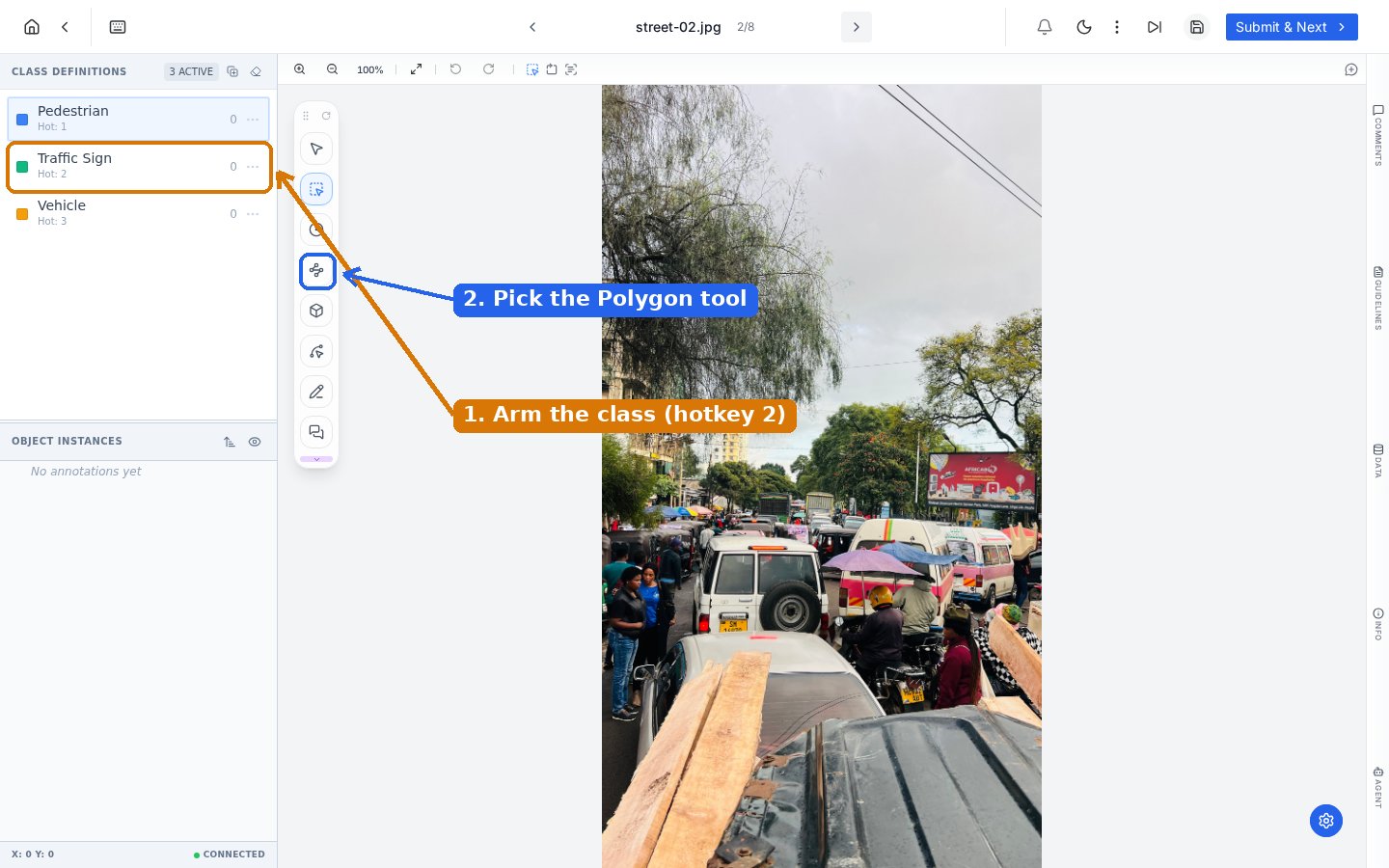
The two-step setup: arm the class with its hotkey, then pick the Polygon tool from the floating palette.
1
Arm the class
Press the class hotkey (shown as Hot: 1, 2, 3 in the class panel) or click the class name.
2
Select the Polygon tool
Click the polygon icon in the floating palette.
3
Click each vertex
Click along the object’s outline. Every click drops a vertex; the shape fills with the class color as it forms.
4
Close the shape
Double-click on the first vertex to close the polygon. It joins Object Instances with an ID like every other annotation.
Edit vertices
Select a polygon with the Select tool and its vertices become draggable handles. Pull any vertex to refine the outline; the polygon reshapes live.
A selected polygon exposes its vertex handles for fine-tuning.
Work precisely
- Zoom first. Vertex accuracy is a function of zoom level; draw detailed sections at 200 percent or closer.
- Fewer, better vertices. A clean 8-point outline usually trains better than a shaky 40-point one, and it is far easier to edit later.
- Use the pixel readout. The status bar shows cursor coordinates, useful when guidelines specify snapping or margins.
- Lock finished polygons. Dense scenes plus draggable vertices invite accidents; the lock toggle in Object Instances prevents them.
Frequently asked questions
Can I add or remove a vertex after closing the polygon?
Can I add or remove a vertex after closing the polygon?
Select the polygon and drag existing vertices to reshape it. For a materially wrong outline, deleting and redrawing is usually faster than reworking many vertices.
Do polygons and boxes export differently?
Do polygons and boxes export differently?
Both export with their geometry type preserved, so downstream formats receive polygons as point lists and boxes as rectangles. See Exports for format specifics.
Is there a faster way for organic, blob-like shapes?
Is there a faster way for organic, blob-like shapes?
Yes, the Freeform tool draws continuous outlines instead of clicked vertices, and AI-assisted annotation can propose an outline you only correct. Polygon is the precision middle ground.
Next steps
AI-assisted annotation
Let a model propose the outline; you adjust vertices instead of placing them.
Image annotation editor
The full editor tour: panels, palette, hotkeys, saving.