
Activation & Setup
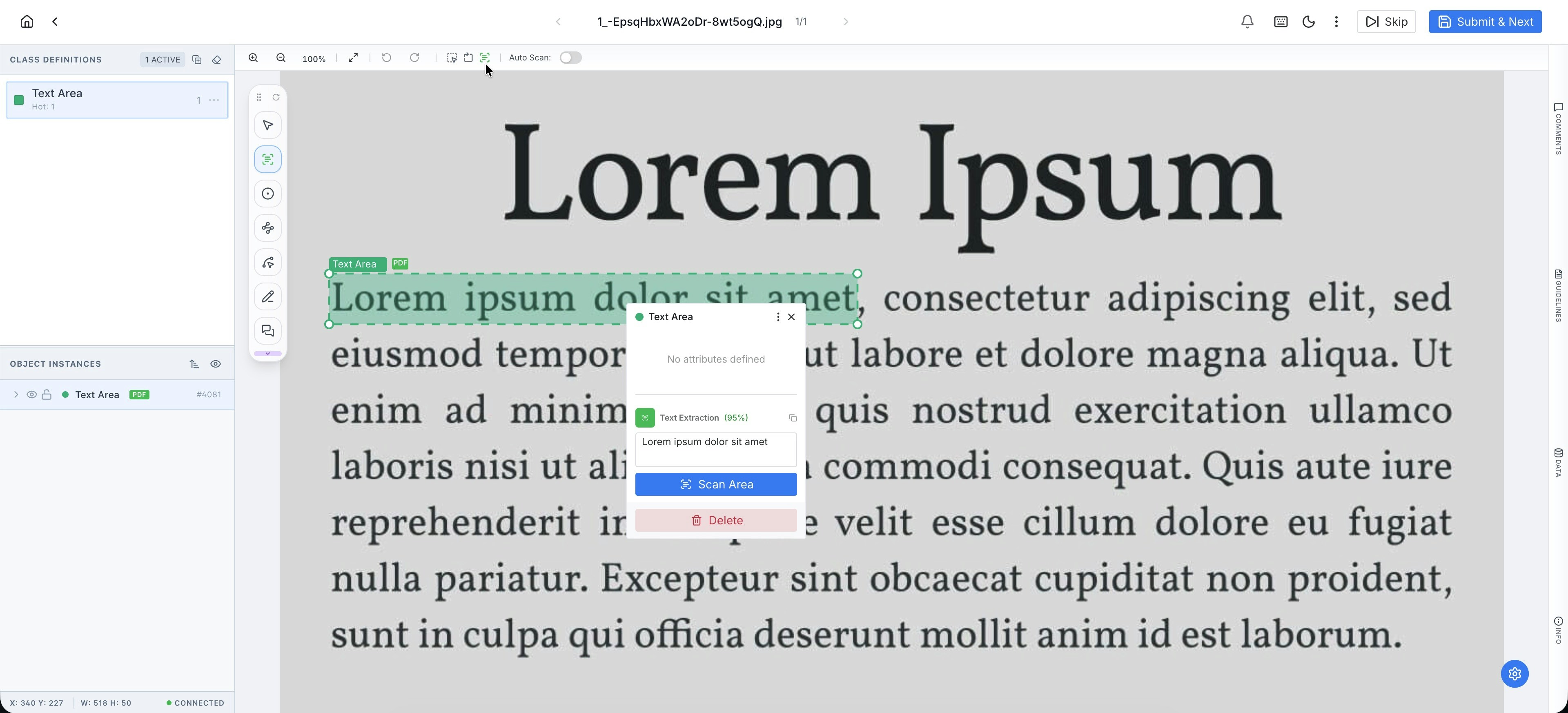
The OCR functionality is linked to the Bounding Box tool. To enable it:- Select BBox: Choose the Bounding Box from the Smart Tool Palette.
- Toggle OCR Mode: In the Interactive Toolbar (at the top), switch the mode from a standard BBox to an OCR Box.
Scanning Modes
PixlHub provides two ways to process text, allowing for both manual control and high-volume automation:- Manual Scan: After drawing a box, right-click to open the Context Menu and select “Scan”. This triggers the recognition engine for that specific region.
- Auto-Scan: For faster workflows, the Auto-Scan option can be toggled on via the Interactive Toolbar. When enabled, PixlHub automatically performs text extraction the moment a box is completed, instantly populating the associated text field.
Privacy & Security (Local Inference)
To meet the requirements of high-security environments and sensitive data projects, the OCR engine is built with a “security-first” architecture:- Local Models: All recognition is performed using modified OCR models running locally on the system.
- No External Dependencies: The process does not rely on third-party APIs or external cloud connections.
- Data Sovereignty: Since no data is transmitted to external servers, the OCR tool is fully compliant with strict data privacy regulations, ensuring that sensitive information never leaves the local environment.