
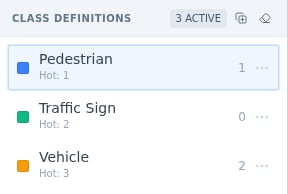
Class definitions: color, name, hotkey and live count per class. The highlighted row is armed.
Arming a class
Whatever you draw takes the armed class, shown highlighted in the panel. Two ways to arm:- Click the class row.
- Press its hotkey, the number shown as “Hot: 1”, “Hot: 2” and so on (shortcuts 1 through 5 select labels, per the shortcut reference).
Reading the panel
- The count on each row is per-task and live; when guidelines say “label every price tag”, this is the scoreboard.
- The ACTIVE chip in the header confirms how many classes the schema exposes here.
- The row menu (the dots on hover) carries per-class actions without a trip back to the schema tab.
In dense scenes
The counts turn coverage into arithmetic: eight vehicles visible, six on the counter, two to go. Combined with Object Instances’ per-object visibility toggles, working one class at a time through a crowded frame stays tractable: arm, sweep the frame, check the count, next class.Panel order equals hotkey order, and both come from the schema; put the highest-volume classes first when designing it.
Next steps
Label Schema
Where classes, colors and hotkeys are defined.
Object Instances
The per-annotation counterpart to this panel.