
The default pipeline
New projects start with three steps wired together: Label → Review (Accepted / Rejected) → Done- Submitting a task in the editor moves it from Label to Review.
- A reviewer accepts it (forward to Done) or rejects it (back to Label, with comments explaining why).
- Each node shows a live count of the tasks currently sitting in that step, so the graph doubles as a bottleneck monitor: a fat Review count means labelers are outrunning reviewers.
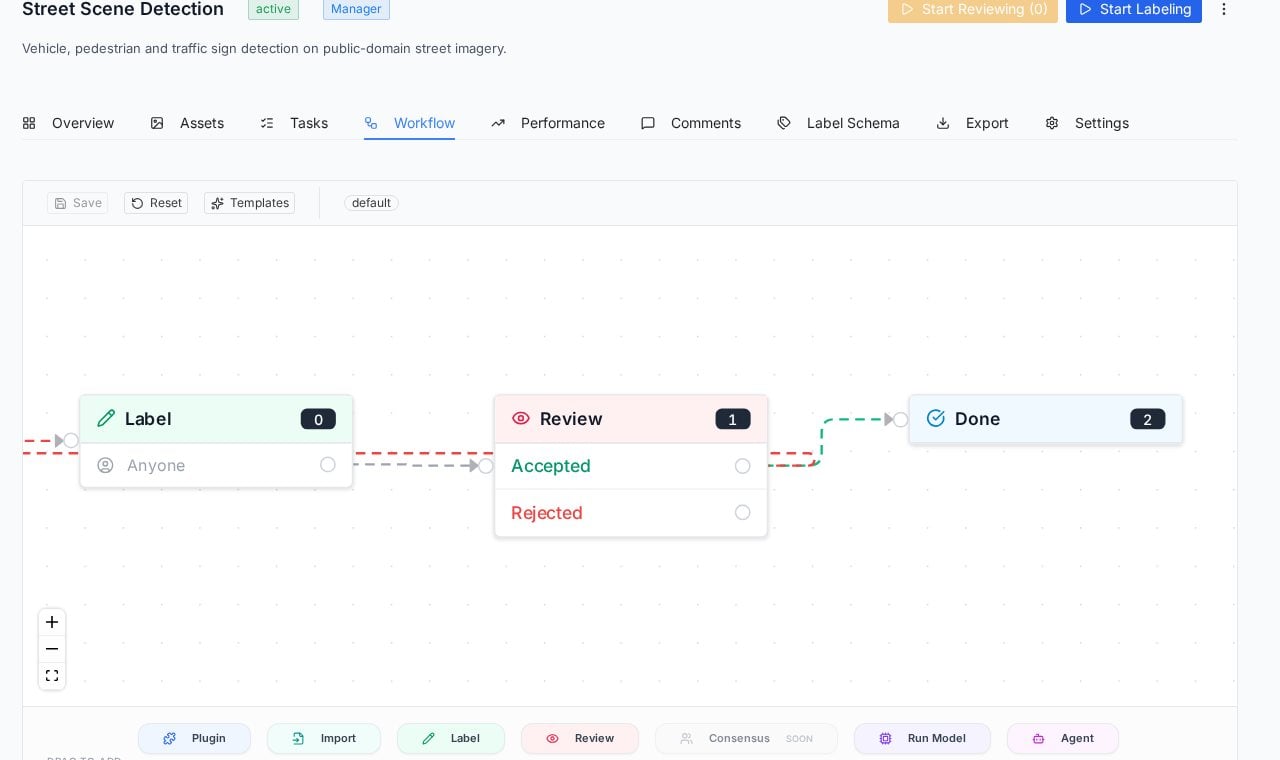
The Workflow tab: the default pipeline with live task counts, and the node palette along the bottom.
The workflow editor
The graph is editable: drag to rearrange, connect steps, and extend the pipeline from the node palette at the bottom of the canvas. Templates offers ready-made pipeline shapes, and Save / Reset manage your changes (the shipped pipeline is the sensible default until your QA process demands more).
The node palette: building blocks for custom pipelines.
The assignment chip on a Label node (for example “Anyone”) controls who can pull those tasks. Team roles decide who can pull from each queue; the dedicated guide for roles is on its way.
Reading workflow state elsewhere
The pipeline’s state surfaces across the project so you rarely need to open the graph to know where things stand: the Tasks tab shows per-step queue counts and each task’s current status; the project header’s Start Labeling and Start Reviewing buttons show how many tasks wait in each queue; and the Overview tab tracks completion percentage against the whole pipeline.Practical patterns
- Keep Review in the loop even for solo projects. Reviewing your own day-old labels catches a surprising share of errors, and the Rejected path documents what changed.
- Watch the node counts weekly. They are the earliest signal of a staffing imbalance between labeling and review.
- Extend only when the default hurts. A second review step or a model pre-labeling node earns its complexity on high-stakes or high-volume datasets, not on a 200-image pilot.
Frequently asked questions
What happens to a rejected task?
What happens to a rejected task?
It returns to the Label step carrying the reviewer’s comments. The original annotator sees the feedback pinned in context and resubmits after fixing.
Can different projects have different workflows?
Can different projects have different workflows?
Yes, the workflow belongs to the project. A quick internal dataset can run Label to Done while a production dataset runs a stricter pipeline.
Do I need to touch the editor to use PixlHub?
Do I need to touch the editor to use PixlHub?
No. The default pipeline covers the standard label-review loop out of the box; the editor exists for the day your process needs more steps, models or integrations.
Next steps
Tasks
The queue view: filters, bulk actions, and per-task history.
Comments
Where reviewer feedback lands, pinned to the pixels it concerns.